Introduction to Webflow
The Five Springs Bourbon website is built on Webflow, a development platform and content management system (CMS).
The Webflow Editor
The Webflow Editor is an easy-to-use interface that allows you to edit the content on your site.
When you receive an Editor invite via email, follow the link in the message to create your account.
There are three available Editor seats. To add additional editors, request an invite from Bullhorn.
Accessing the Editor
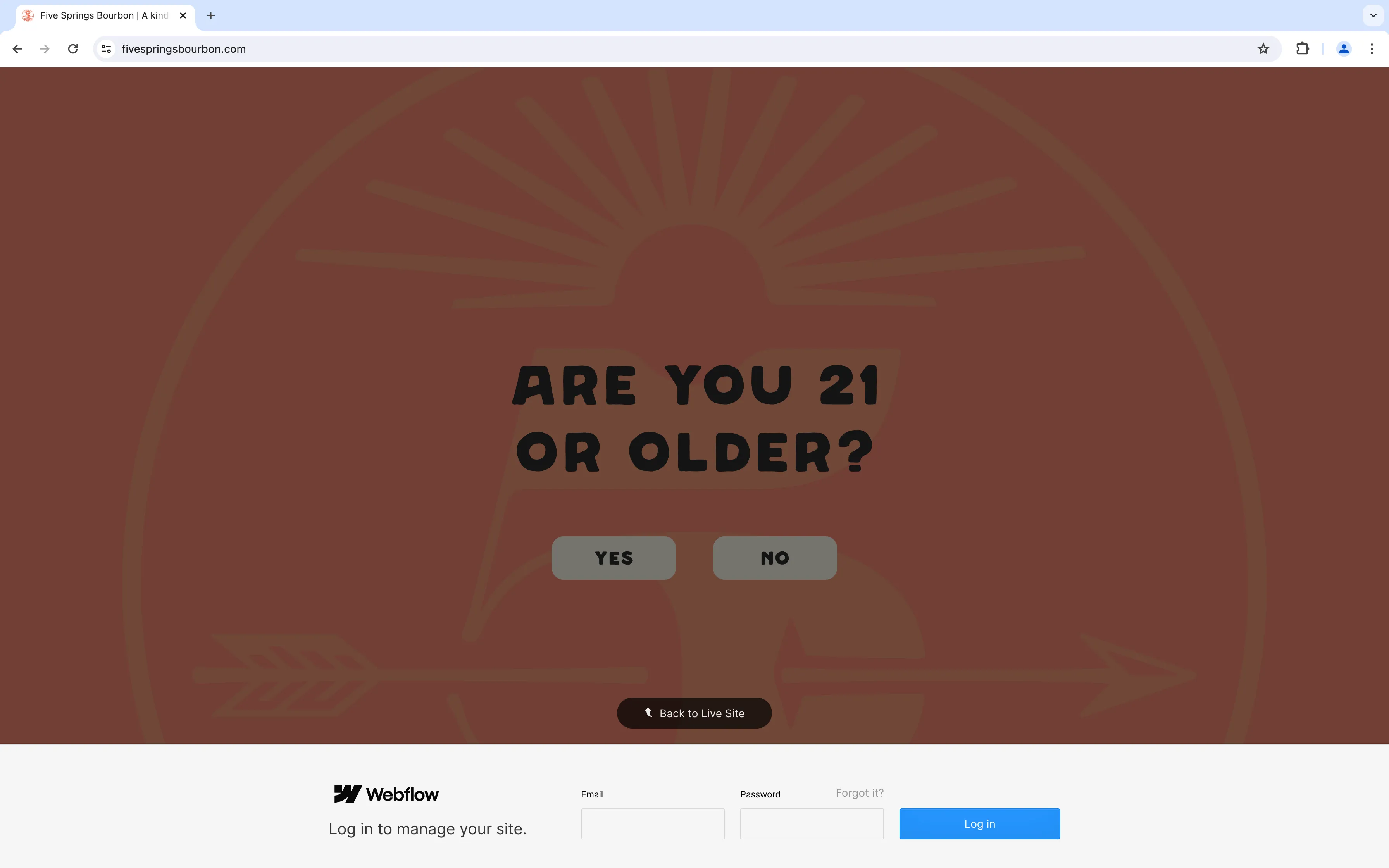
Access the Webflow Editor by appending /?edit to your domain:
- Navigate to the Five Springs Editor at
https://fivespringsbourbon.com/?edit - Enter the
emailandpasswordyou used to create your account in the modal at the bottom of the screen
Using the Editor
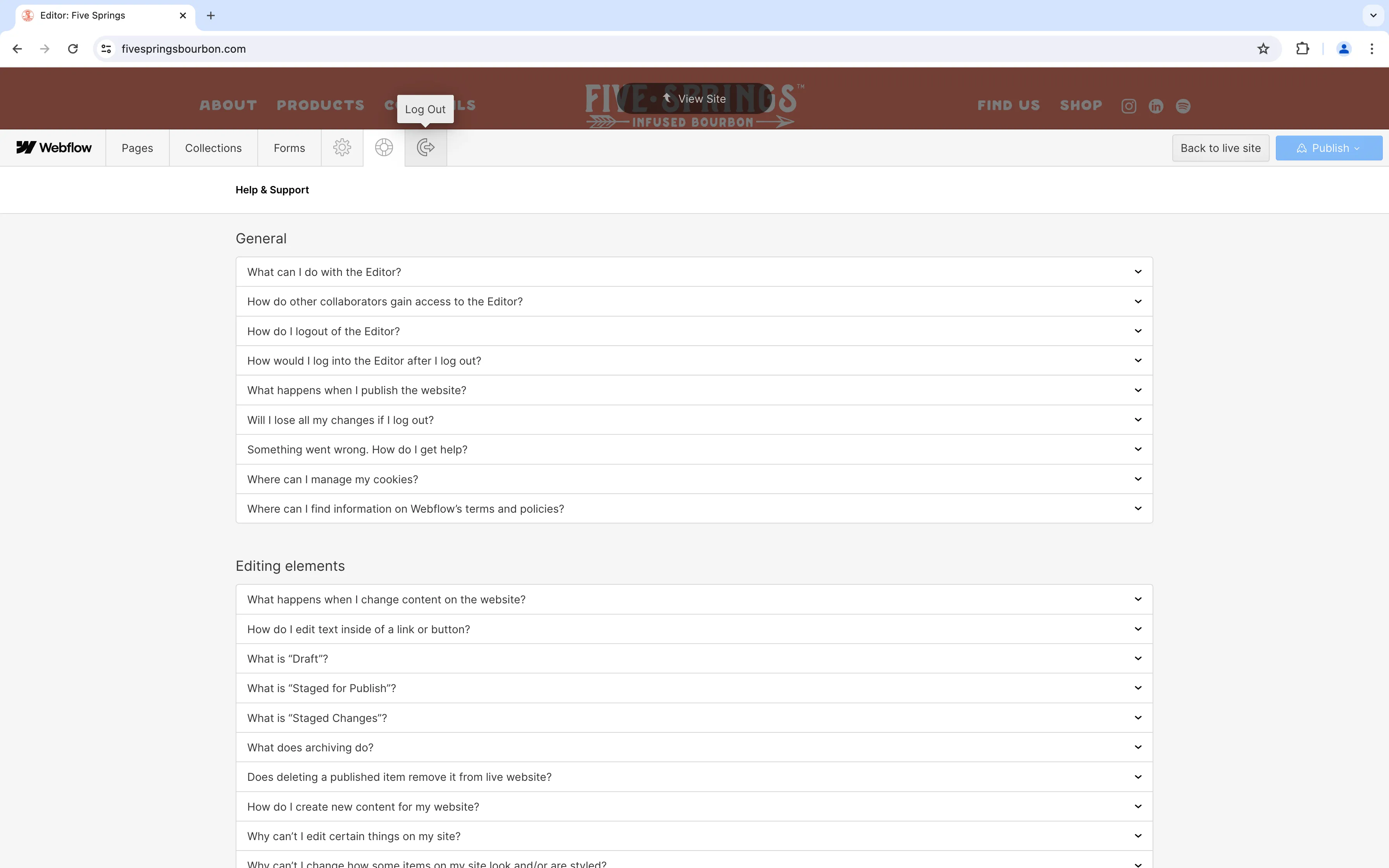
After you log in, you will see a menu at the bottom of the screen. This menu serves as the main interface for the Editor.
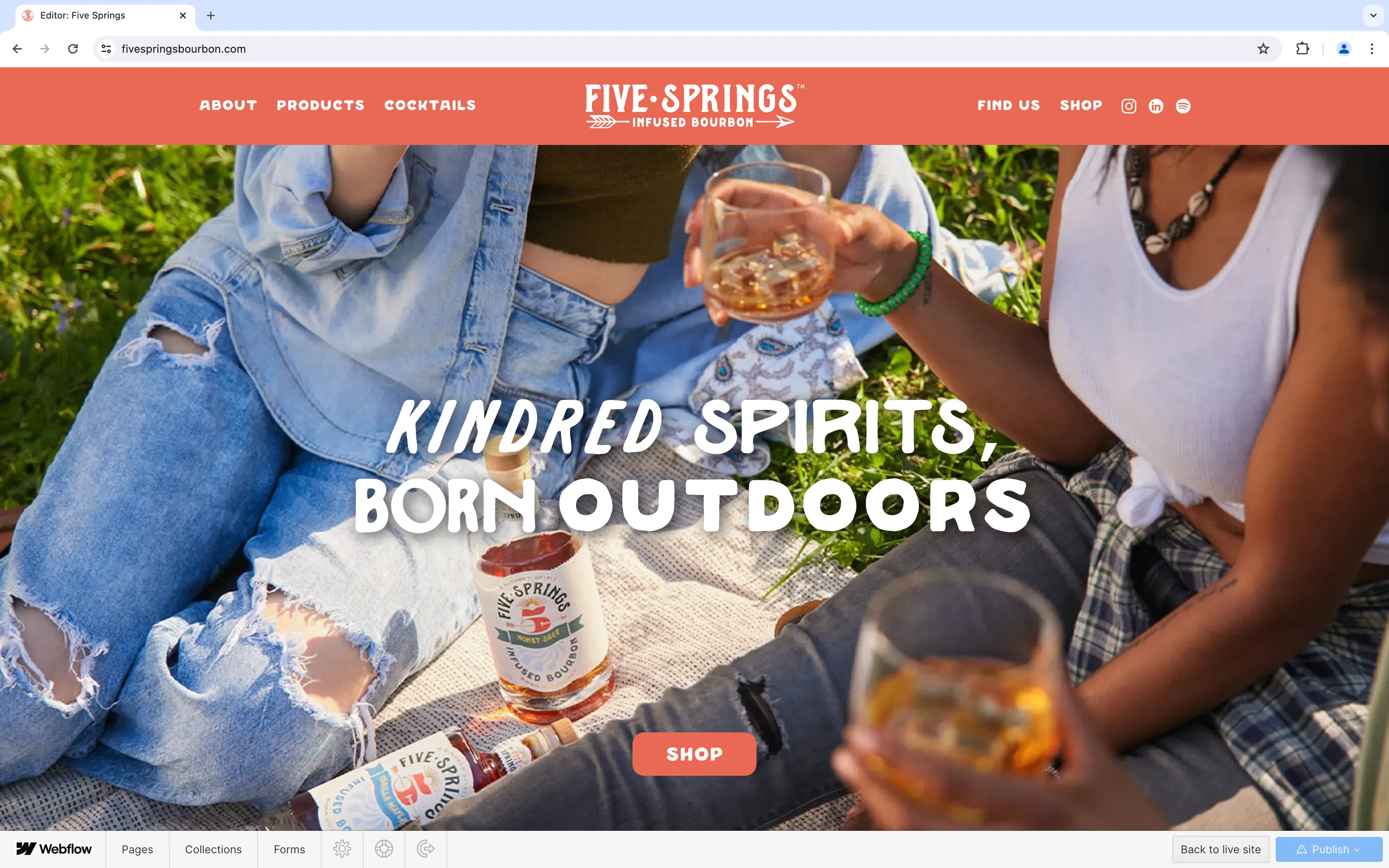
From left to right, the menu includes:
- Pages
- Collections
- Forms
- Account settings
- Help & Support
- Logout
- Back to live site (Exit the Editor)
- Unpublished changes
- Publish button
Pages
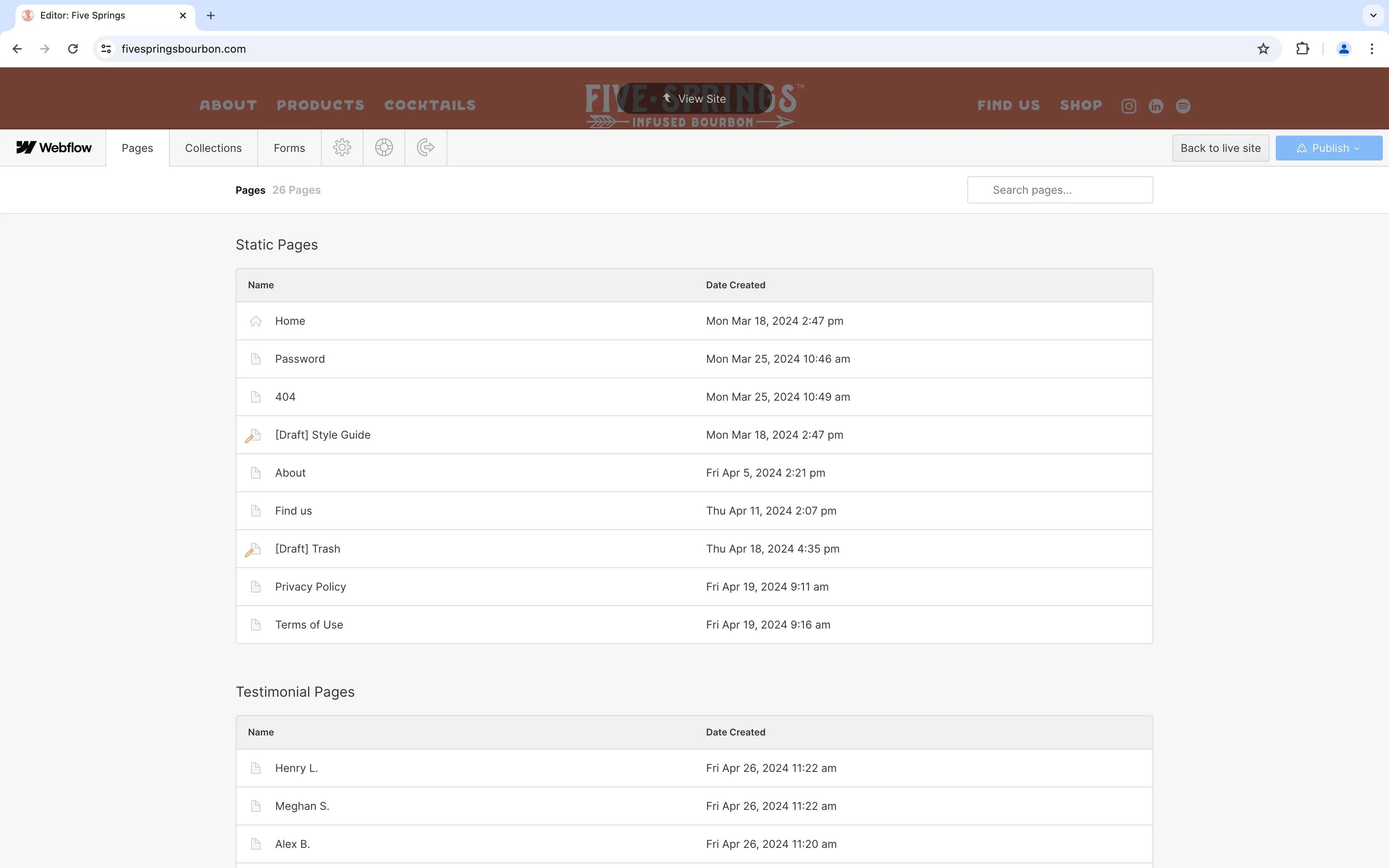
The pages section of the Editor lists several groups of pages on the website. These groups can be organized into two types of pages:
- Static pages: individual pages that are not dynamically generated from a collection.
- Dynamic pages: pages that were generated to display an entry in a collection, like a blog post or product page. For collections that are used only on other pages, like testimonials and recipes, the pages listed here should be ignored.
Collections
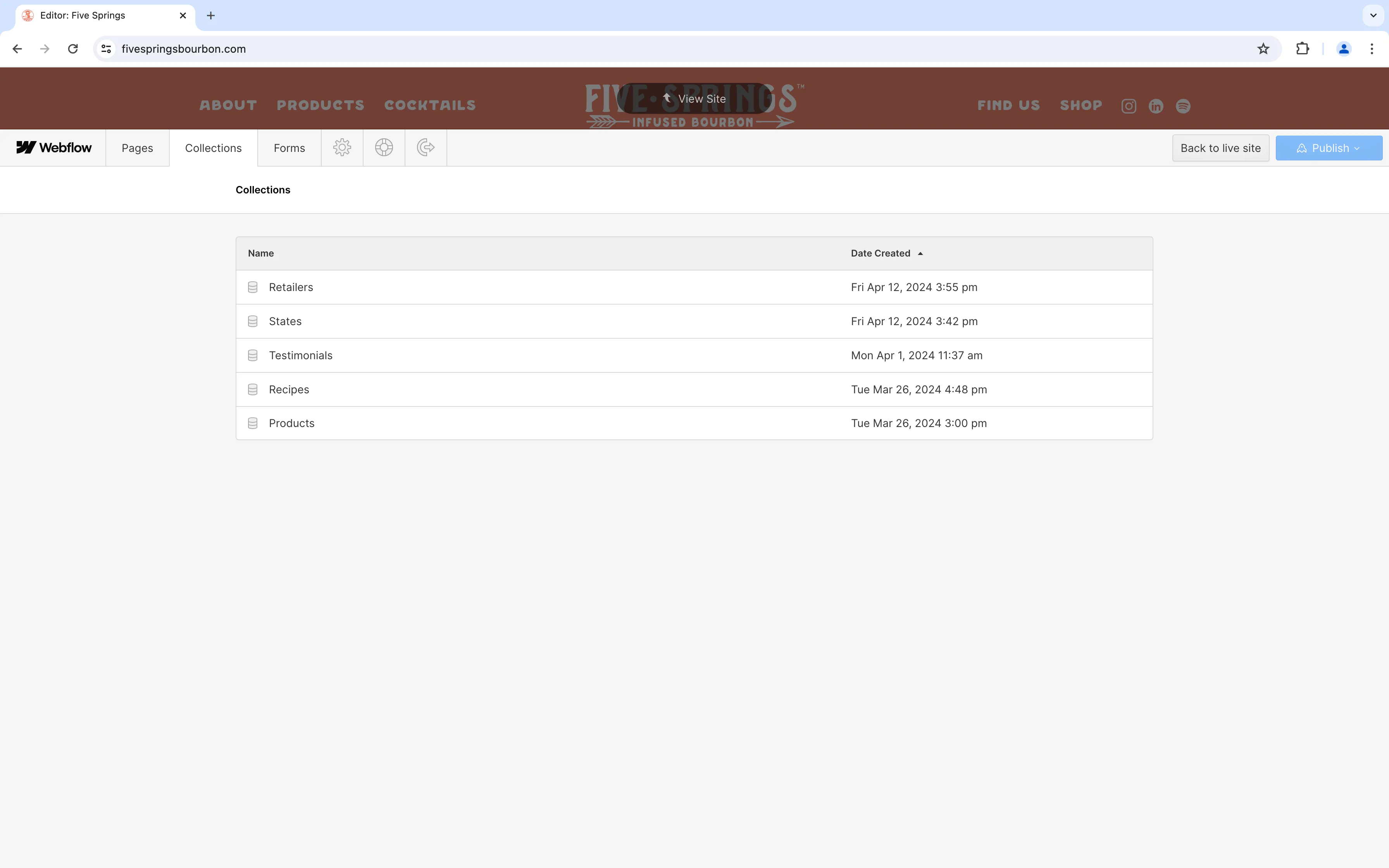
The collections section of the Editor lists each collection used on the site. A collection is a database for repeatable content, like blog posts. In other words, a blog is a collection of posts that use a templated layout to display variable information.
We use collections on Webflow for a variety of data. In addition to page content for products, we use collections for retailers, states, testimonials, and recipes.
Collection items
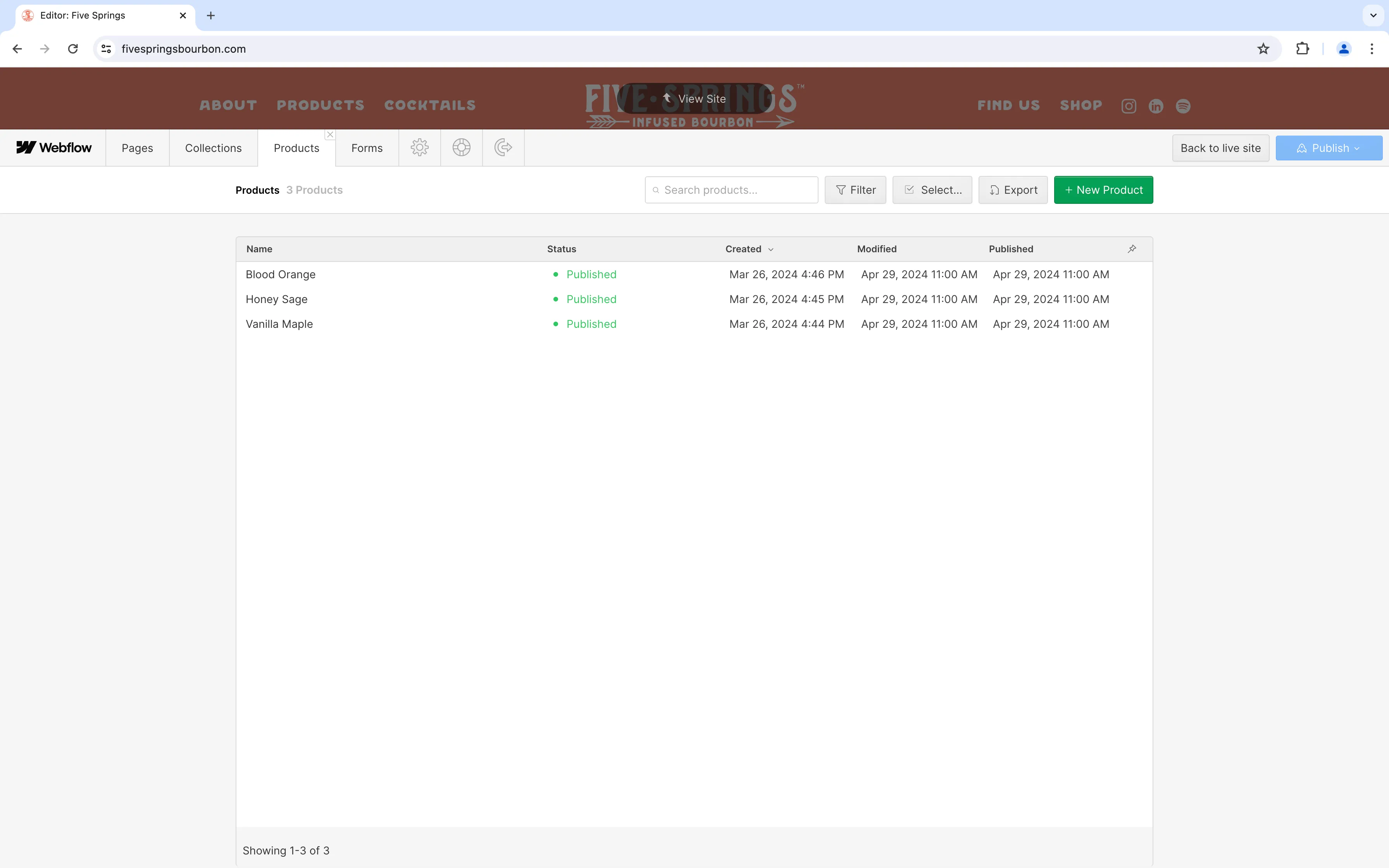
When you open a collection in the Editor, you’ll see a list of its items. You can use this page to create, edit, or publish items.
Forms
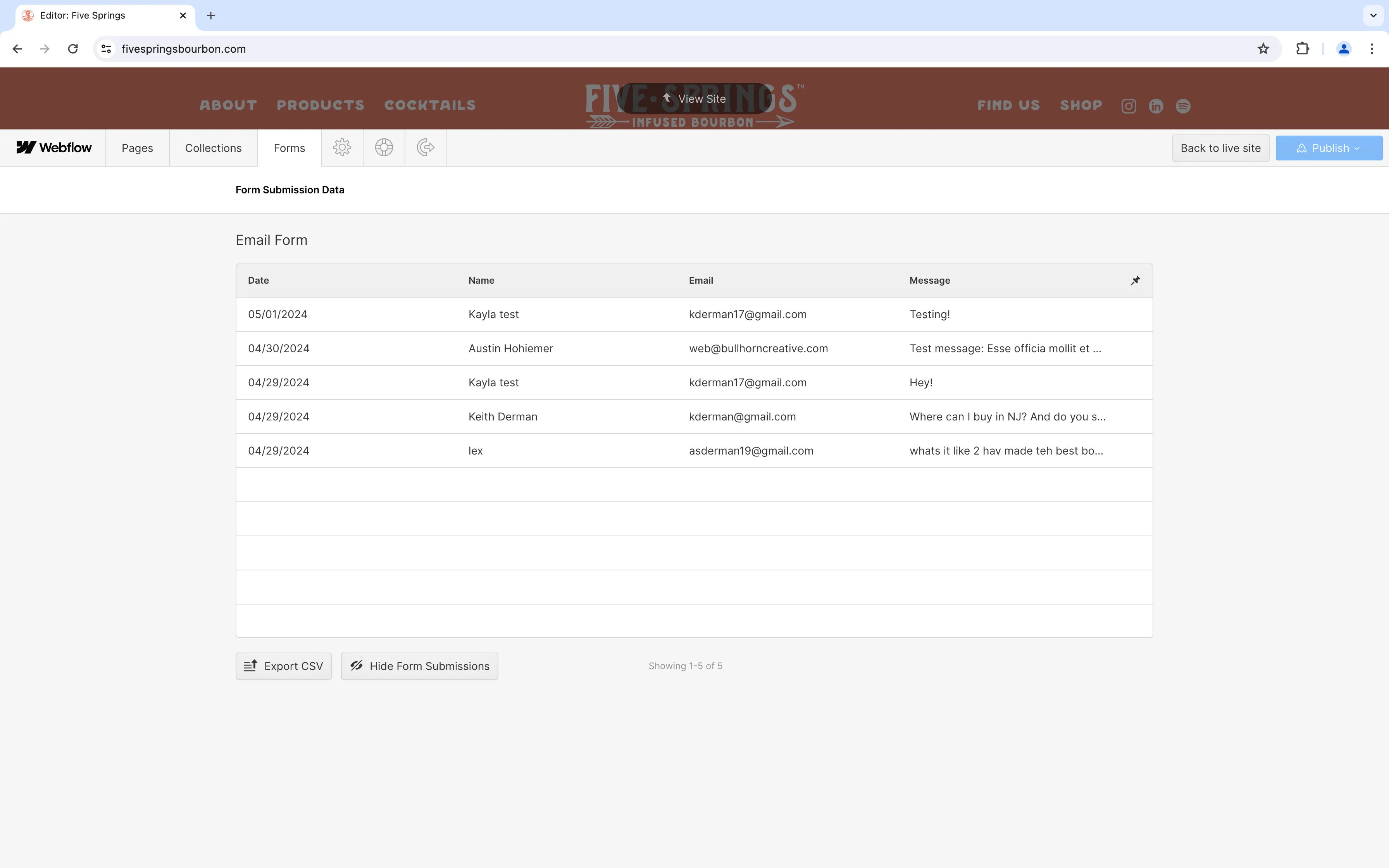
There is a contact form on the about page. You will receive email notifications for each submission, but you can also view form submissions in the Editor. Click below to learn more about managing this form.
Account Settings
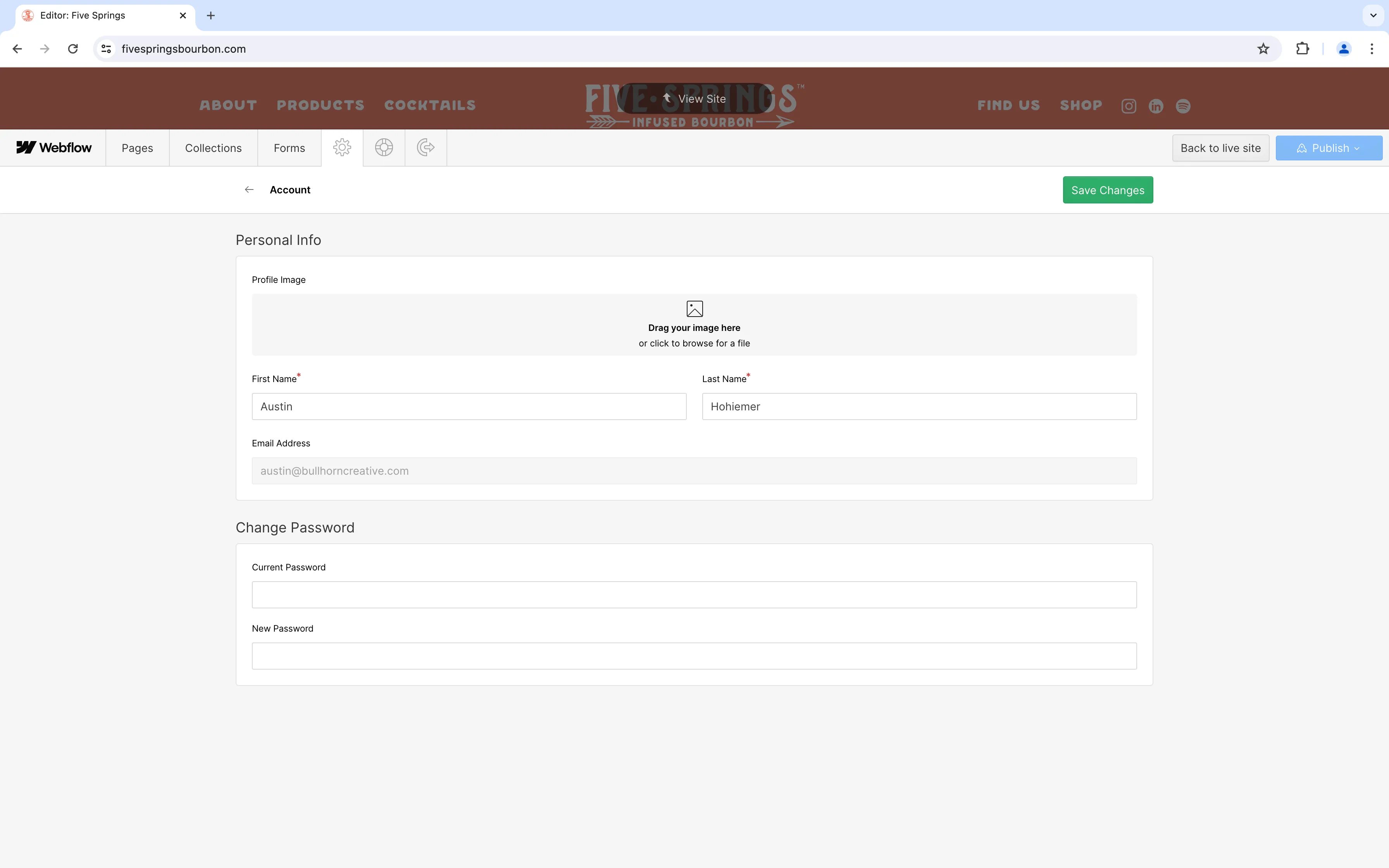
Editor accounts, profile pictures, and account information can be updated in the account section. To access it, click the gear icon ⚙️ in the Editor menu.
Help & Support
The help & support section includes frequently asked questions from Webflow. Use this resource to learn more information about Webflow, the Editor, and updating your site.
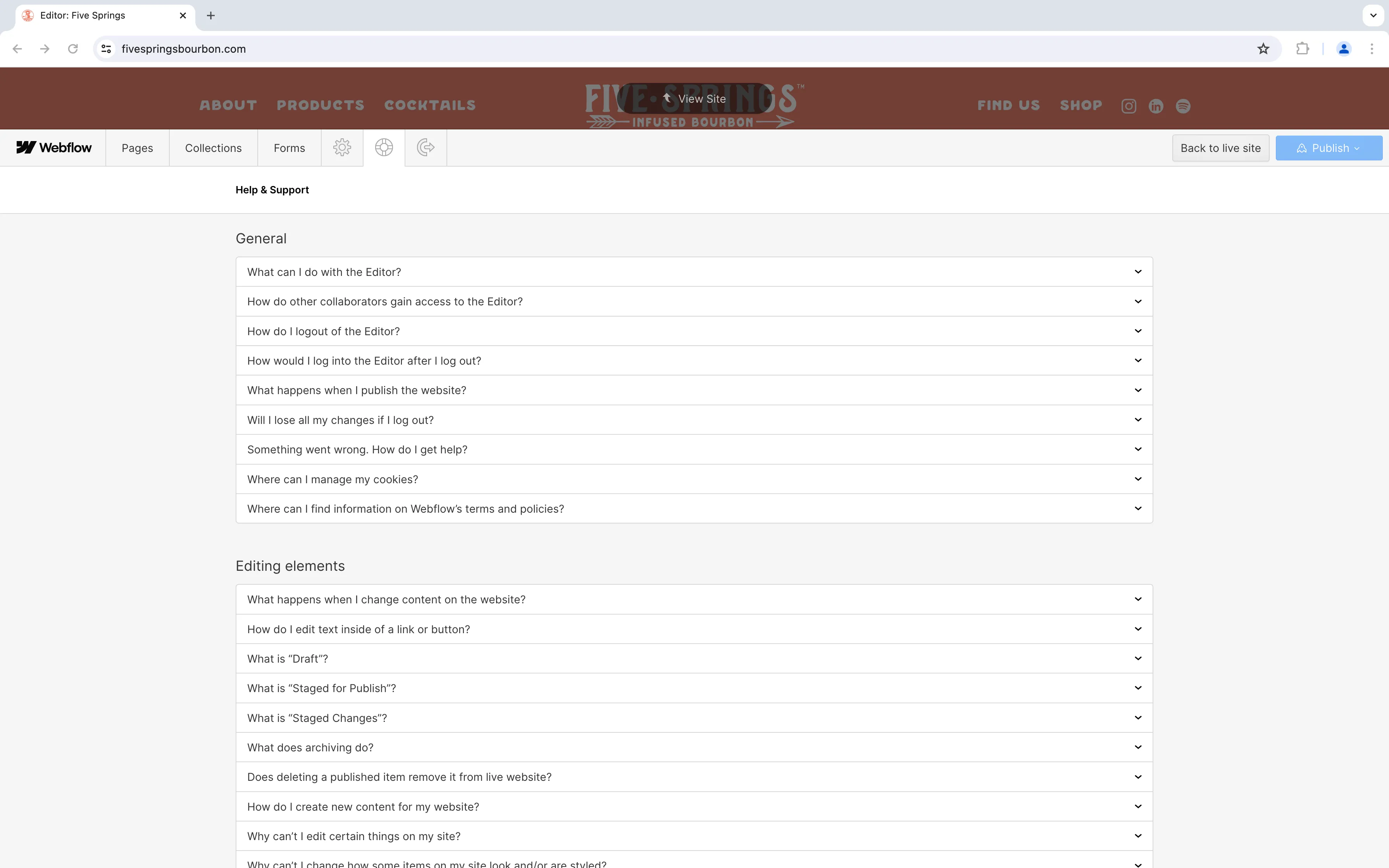
Note: These questions and answers are managed by Webflow. Bullhorn does not have any control over the questions or answers in this section.
If you have any questions, concerns, comments, or requests, please feel free to reach out to Bullhorn.
Logout
To end an editing session, click the logout icon in the Editor.