Publishing
Viewing changes
As you edit the site, Webflow will track any changes that have not yet been published. Click Unpublished changes next to the blue Publish button to see a list of changes.
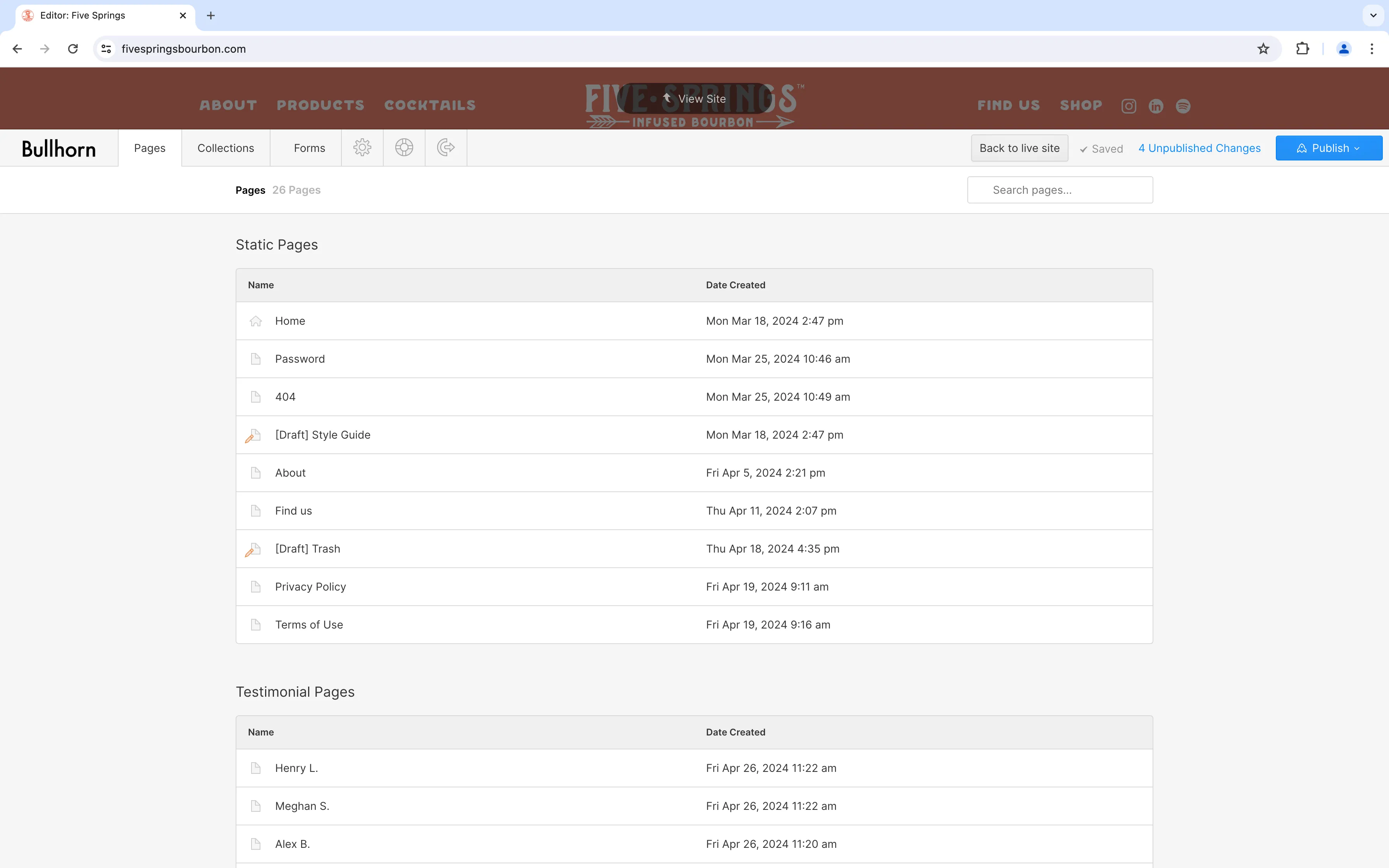
To collapse the Editor and view your changes on the site, click View site at the top of the screen.

Publishing changes
Changes made in the Editor won’t be visible on the production site until you either publish the edited items individually or press the Publish button to publish all staged changes. After clicking publish, the Editor will show a list of staged changes and ask for confirmation.

Reverting changes
Until you publish changes, you can manually revert any edits back to their current state on the site. To do so, navigate back to the location in the Editor where you made a change and update the content. If you need to reference the current site, open the site in a private browser window.
After manually reverting your changes, the Editor will likely continue to list unpublished changes. This is because Webflow is tracking actions that change the site data — not the difference between the original content and the updated content. Once you have reverted any unwanted changes, it is safe to publish the site.
Backups
Nightly backups are included as part of your hosting plan. Should a breaking change or issue or occur, contact Bullhorn to manually restore the website to the last known working configuration.