Caution
This is a destructive action. Deleted items will no longer be available on the site or in the Editor. If you’d like to remove an item from the site without deleting it, save it as a draft instead.
The collections section in the Editor lists all of your collections. Clicking the name of a collection will open a new Editor tab with a list of items in that collection.
The following collections are used on the Five Springs site:
| Collection | Use |
|---|---|
| Retailers | Not displayed at launch. Will be displayed on the Find us page in the future. |
| States | Used to display states with online availability on the Find us page. |
| Testimonials | Used across the site to create testimonial carousels. |
| Recipes | Used across the site to display recipes. |
| Products | Used to create product pages, navigation items, and product links across the site. |
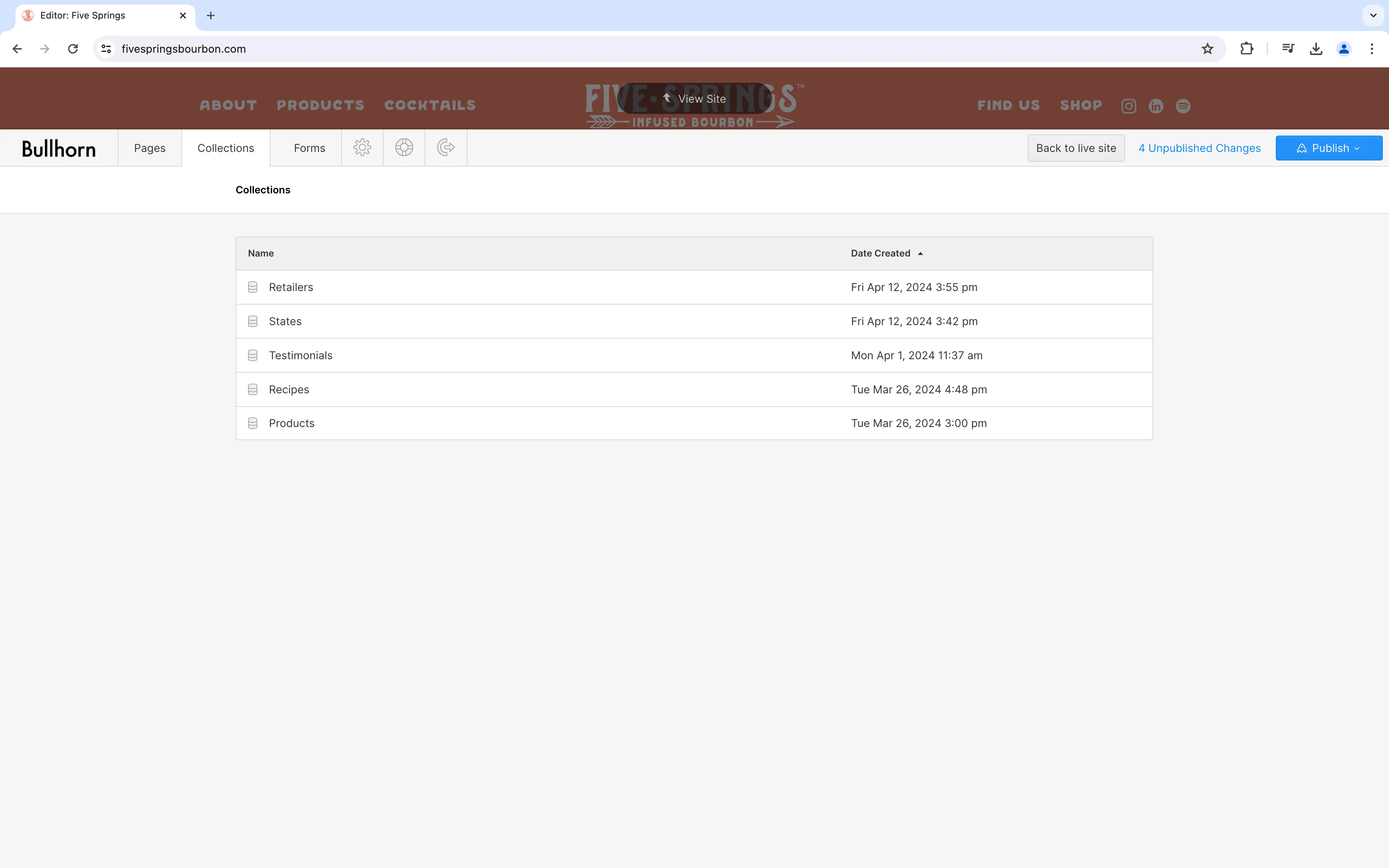
To create a new item, navigate to the collections tab in the Editor. Once there, select the collection you would like to update. You will see a list of existing items.
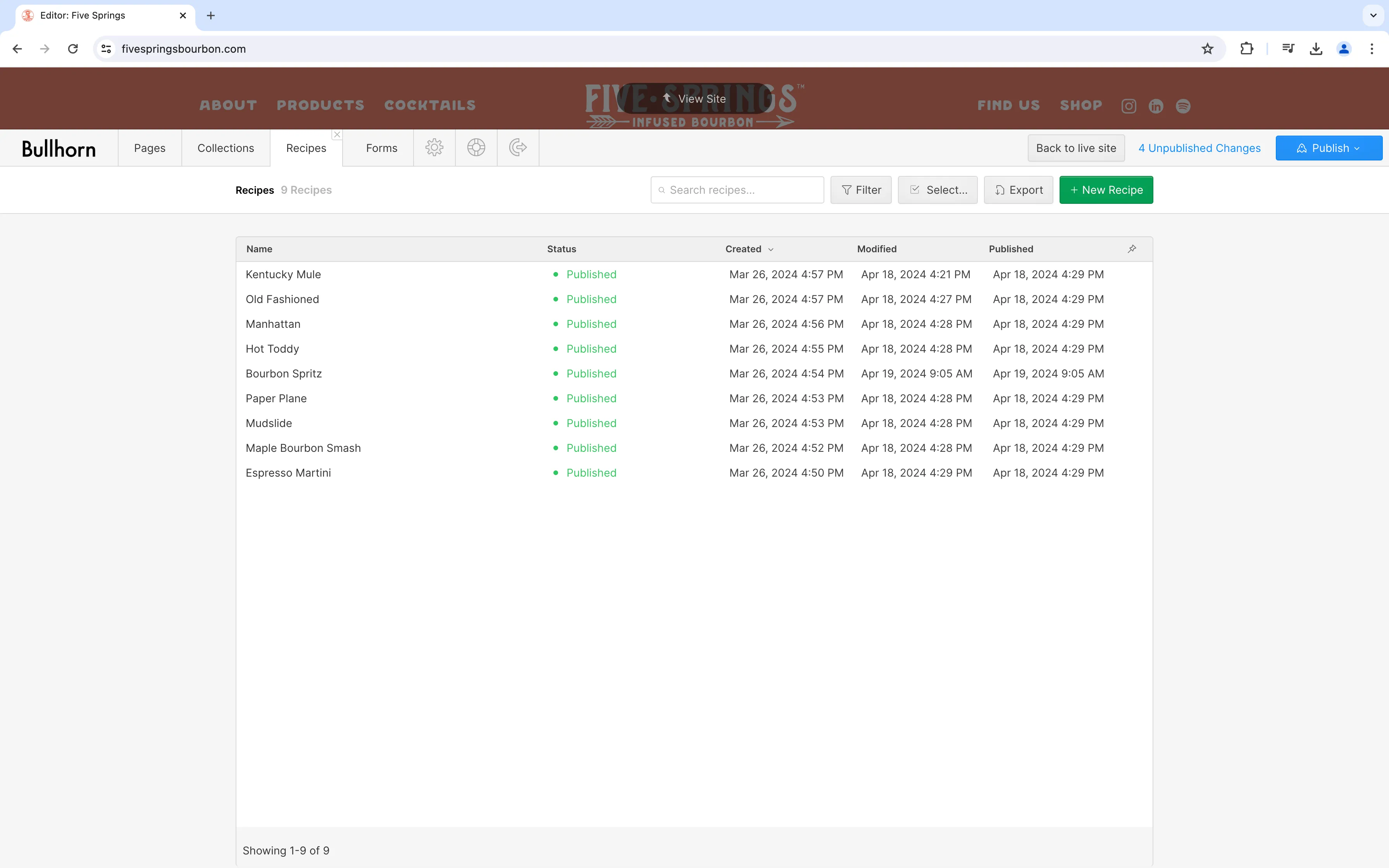
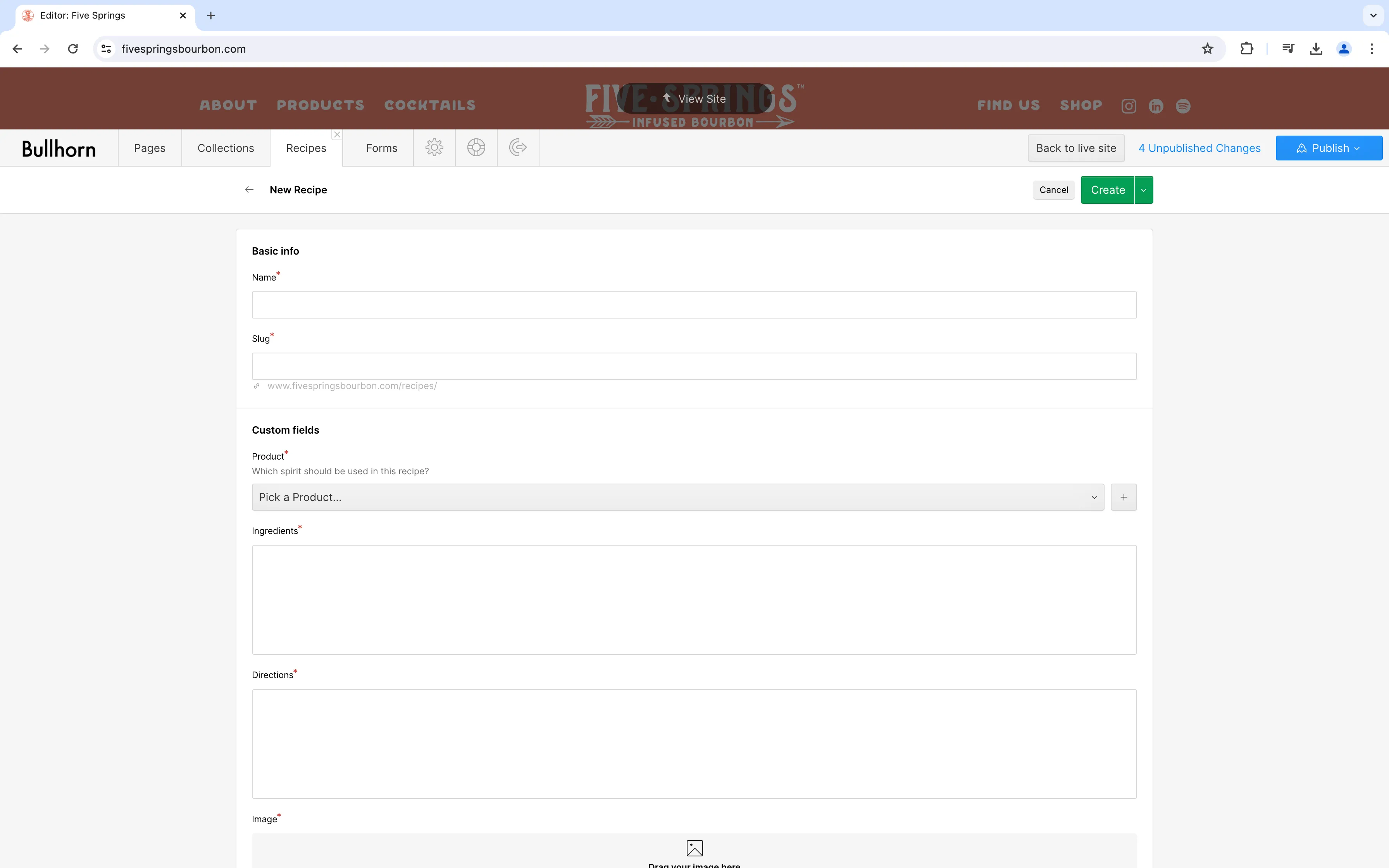
Click the green New button to create a new item. You will see a form with required fields, marked by a red asterisk, and additional optional fields. Enter your content, then click the green Create button to stage the new content for publication. Items that are staged for publication will be added to the site when you click the blue Publish button in the Editor or publish from the Designer.
Click the down arrow inside the Create button for additional saving options:
To update a collection item, navigate to the collections tab in the Editor and select the collection you’d like to update. You will see a list of existing items.
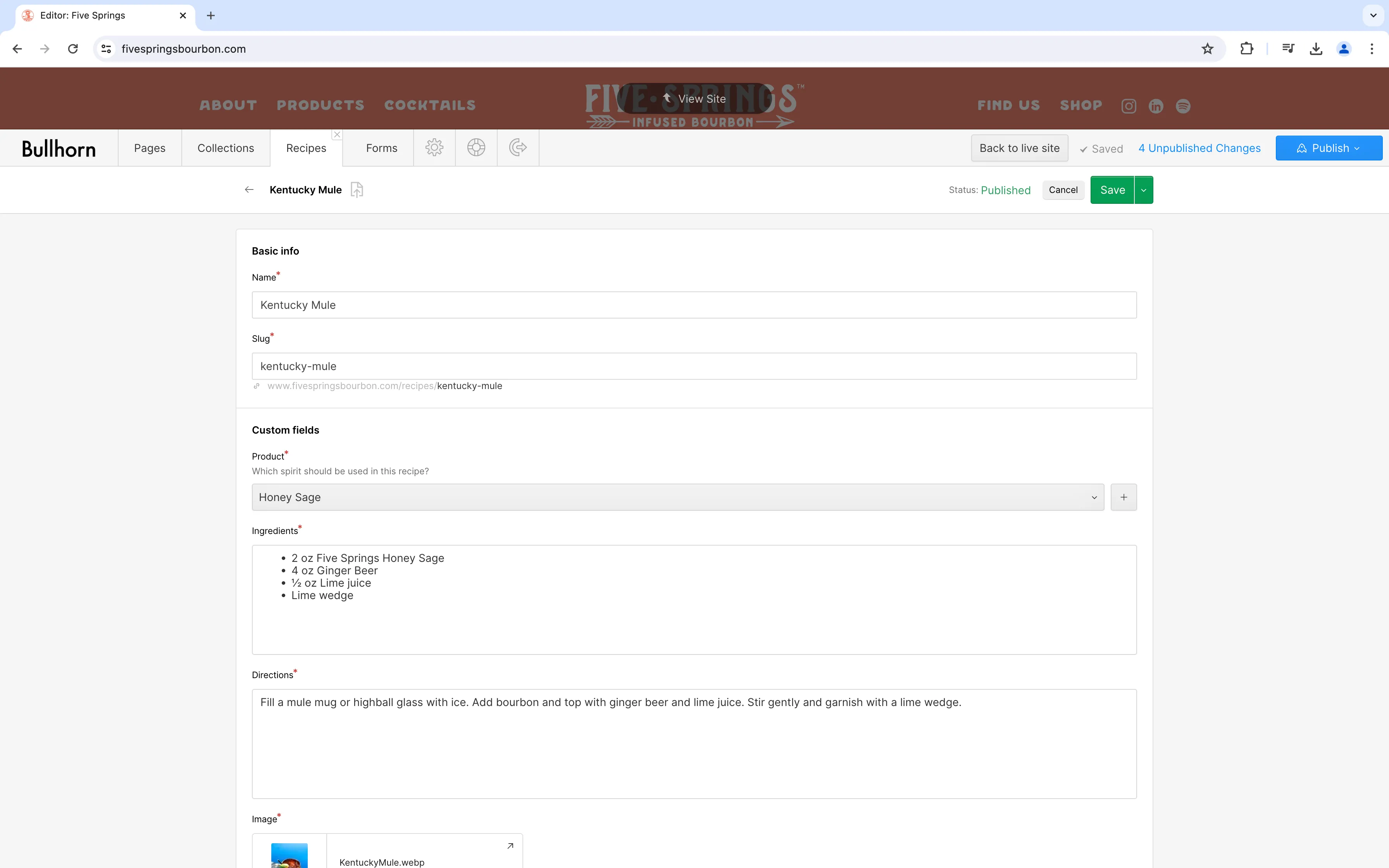
Find the item you would like to update in the list, then click its title. In the item page, you will see a completed form containing the current content. Change any content you would like, then click the green Save button to update the item.
At the bottom of the item page, you’ll find a few additional options:
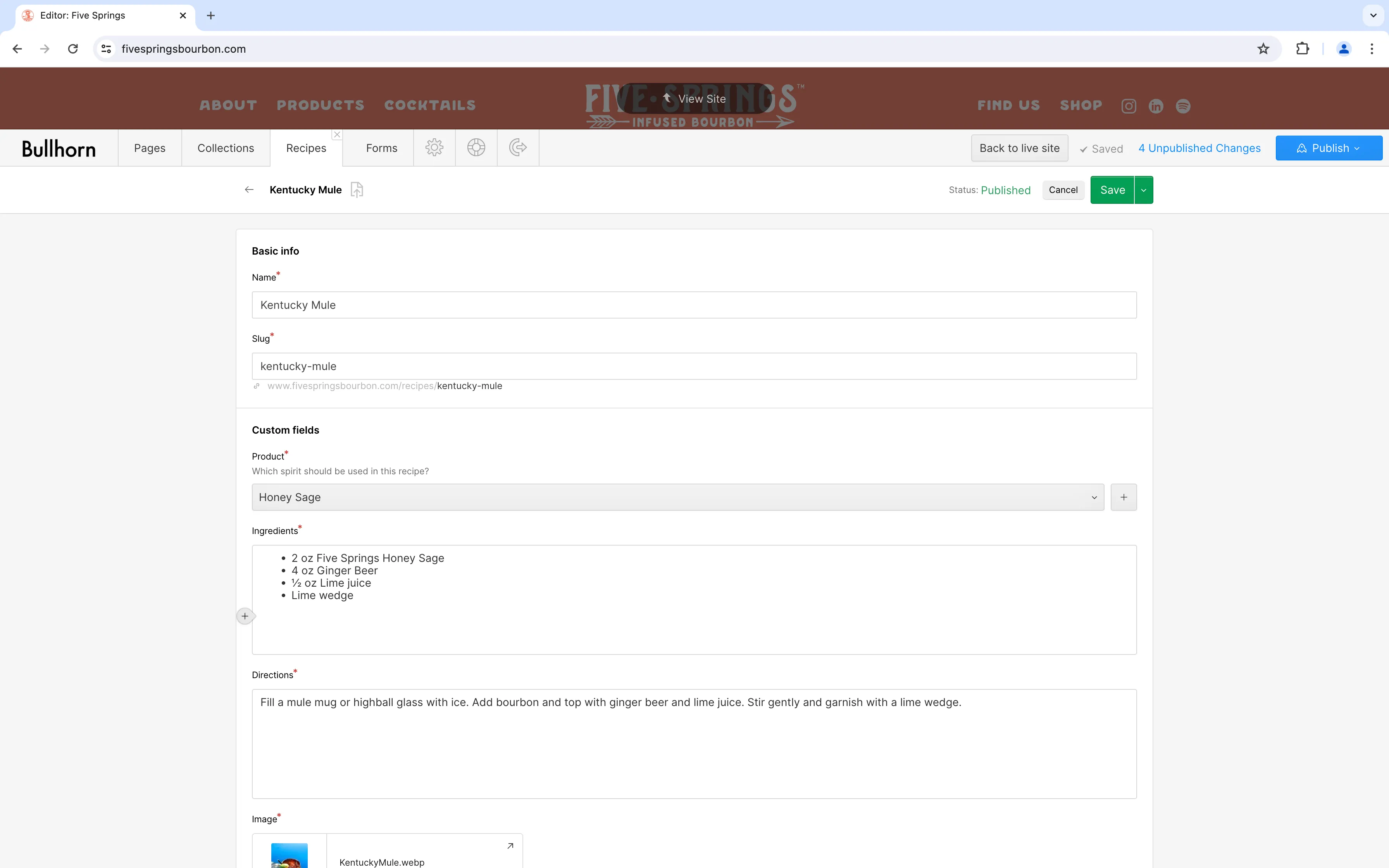
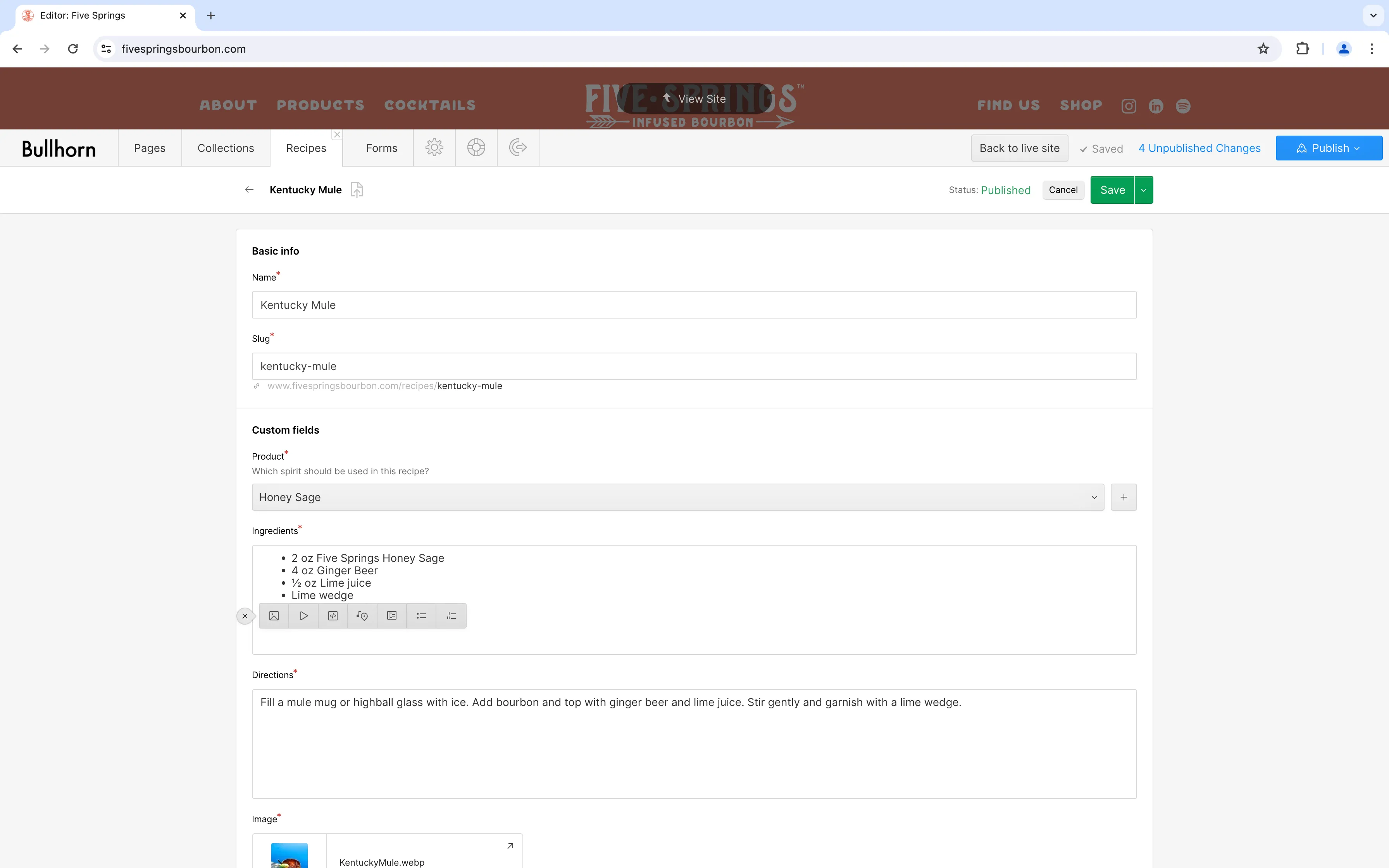
Some collection items include rich text fields. Building on the text formatting options available when editing selected text, rich text fields offer additional formatting options like numbered or bulleted lists, images, and more.
Within a rich text field, move your cursor to a new line to open block-level rich text options. These options include:
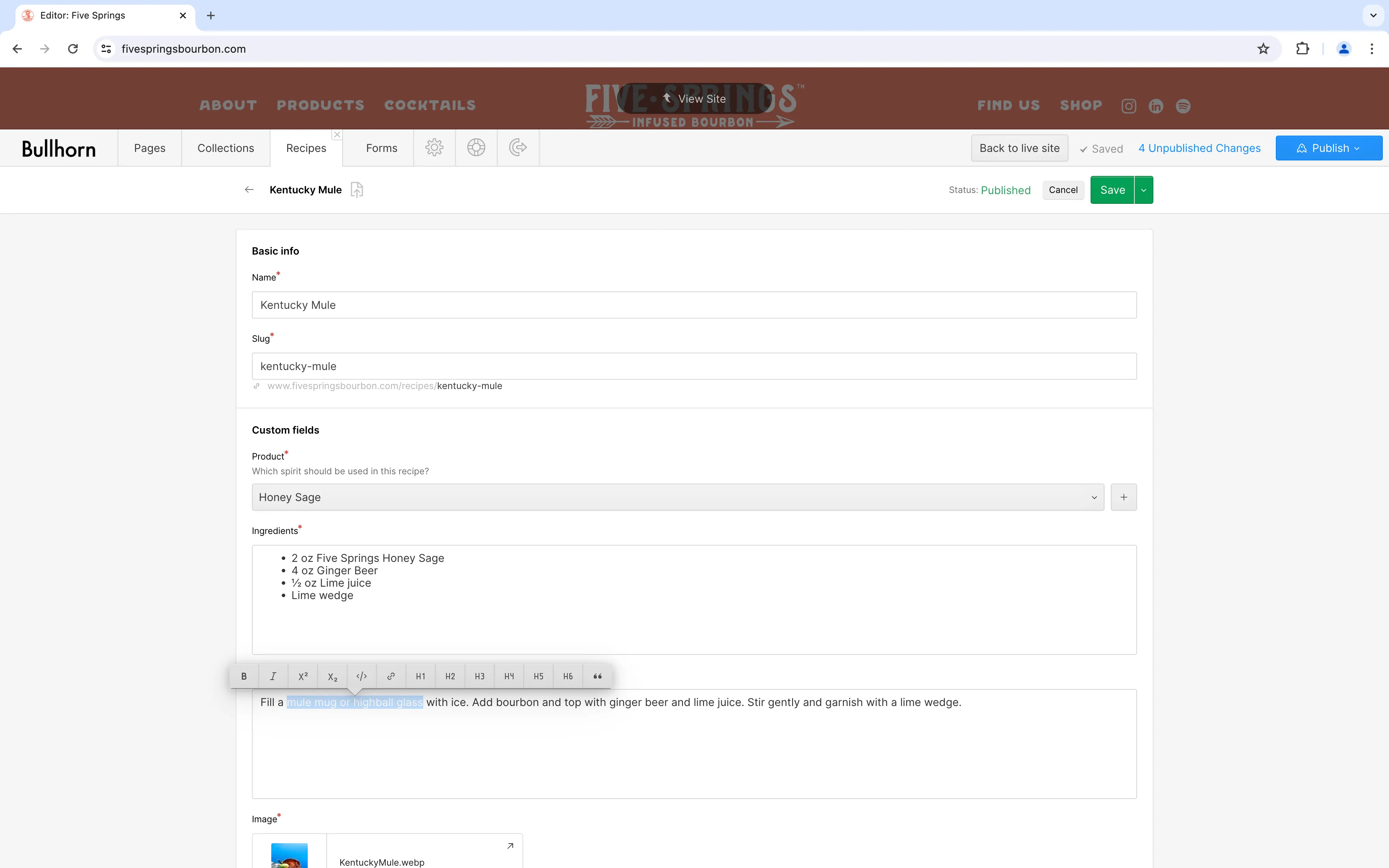
For line-level formatting options, highlight text to bring up the formatting toolbar. Line-level options include:
To delete a collection item, navigate to the item detail page, scroll to the bottom, and click the Delete button.

Caution
This is a destructive action. Deleted items will no longer be available on the site or in the Editor. If you’d like to remove an item from the site without deleting it, save it as a draft instead.
To complete bulk operations on a group of collection items, navigate to the list of items for that collection.
Click Select next to the search bar to activate the multi-selection tool. Then, click the checkboxes next to each of the items you would like to edit.
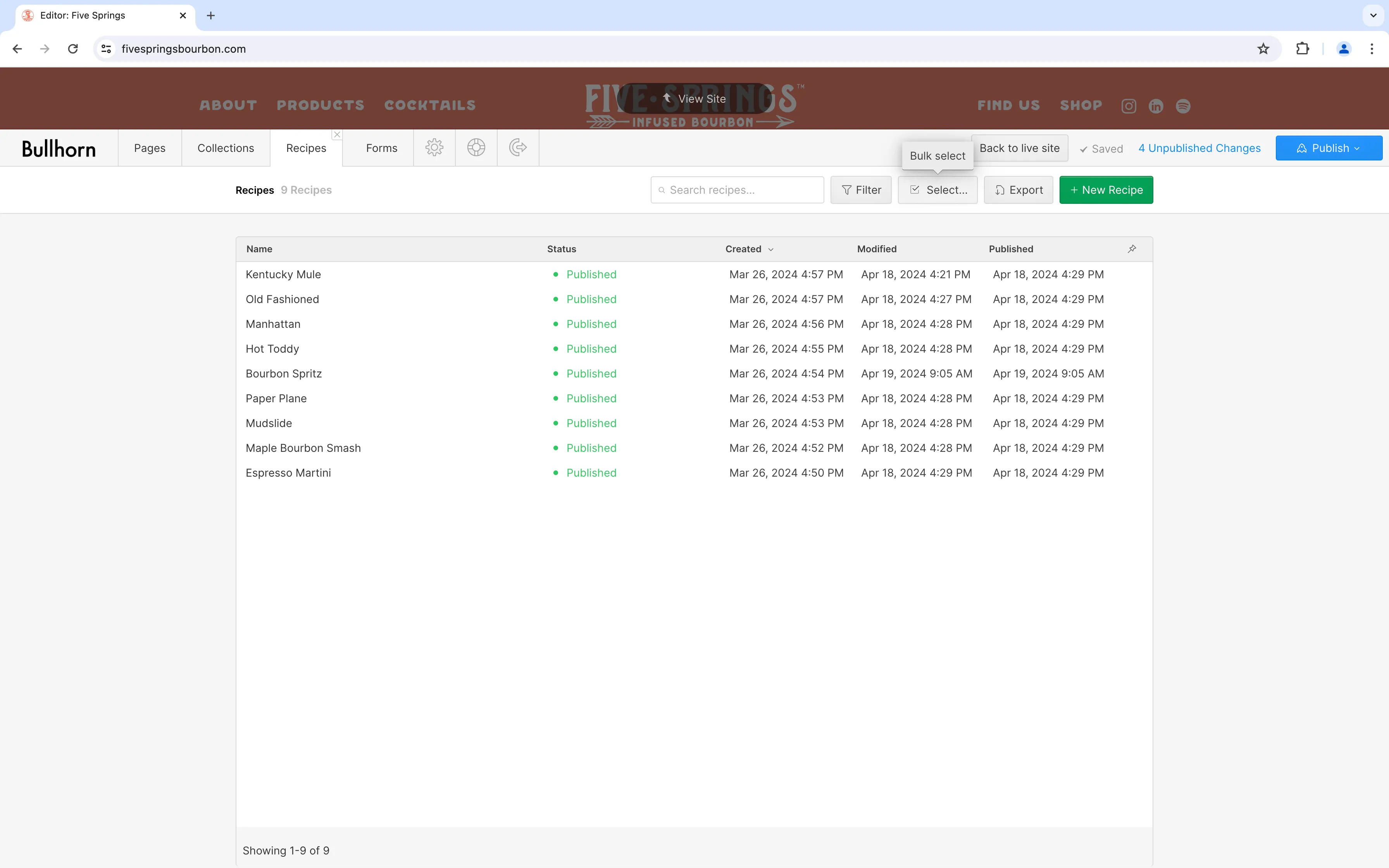

Click the Delete button to permanently delete all selected items. Click the green Update items button to choose from the following options:
To manage page settings for a collection item with its own page, navigate to the pages section of the Editor.
Beneath the first group of pages labeled “Static pages,” there are groups of pages for each collection. Because most collections on the Five Springs site are used to control content on other pages, only “Product pages” are relevant.
Hover over the item title you’d like to edit. Click the Settings button that appears at the end of the item row to open the page settings.
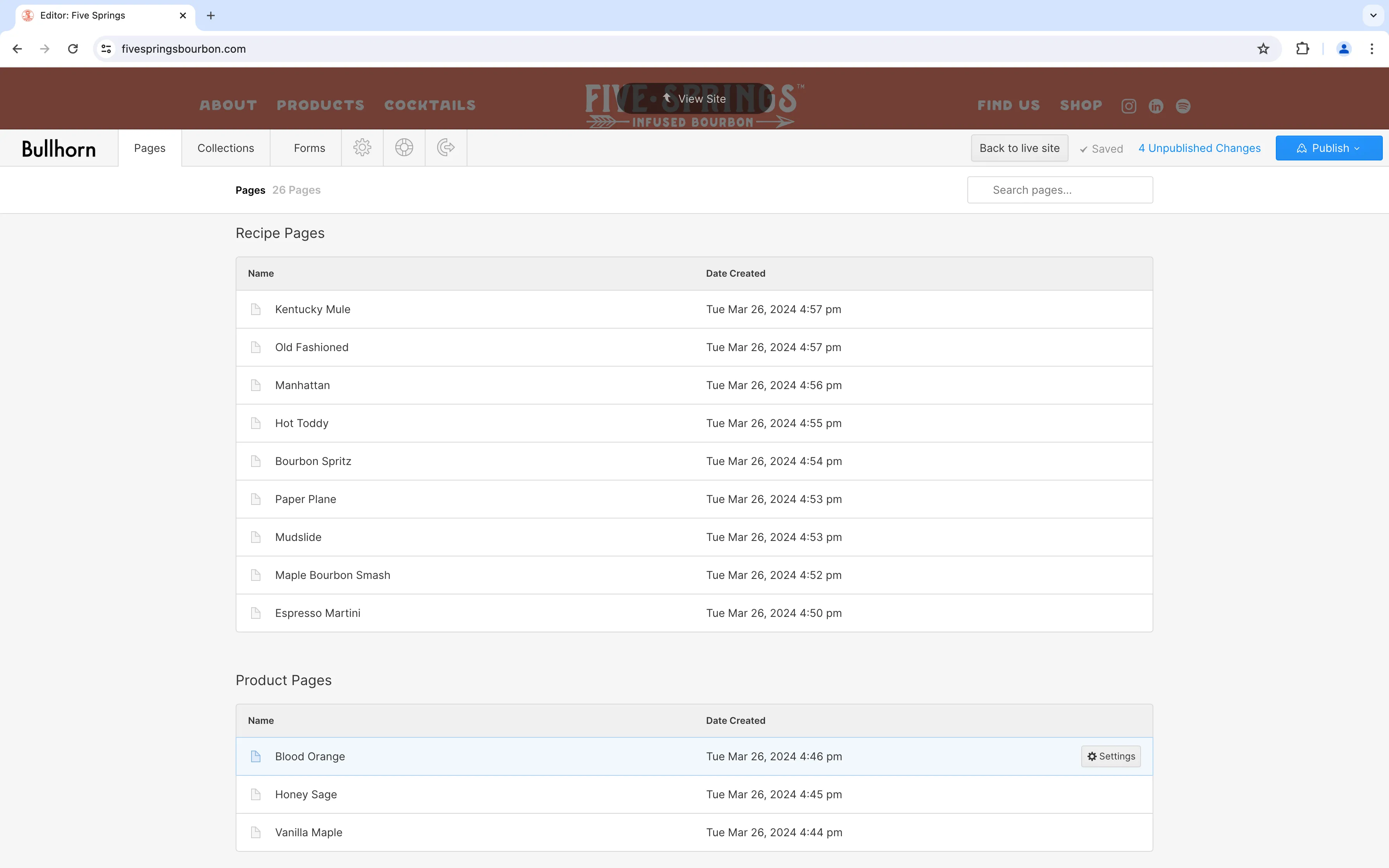
In the page settings for a collection item, you’ll notice an alert at the top of the editing panel:
You’re editing a Collection Template. Changes here will affect all pages that use this template.
Just as dynamic content is managed in one place so that it can be used across the website, changes made to the page and SEO settings of collection items will be applied to all items in that collection.
Dynamic pages, unlike static pages, have access to data from each collection item in the SEO and Open Graph settings. To add the value of a field (like the page title or product description), click + Add Field above the content you are editing.
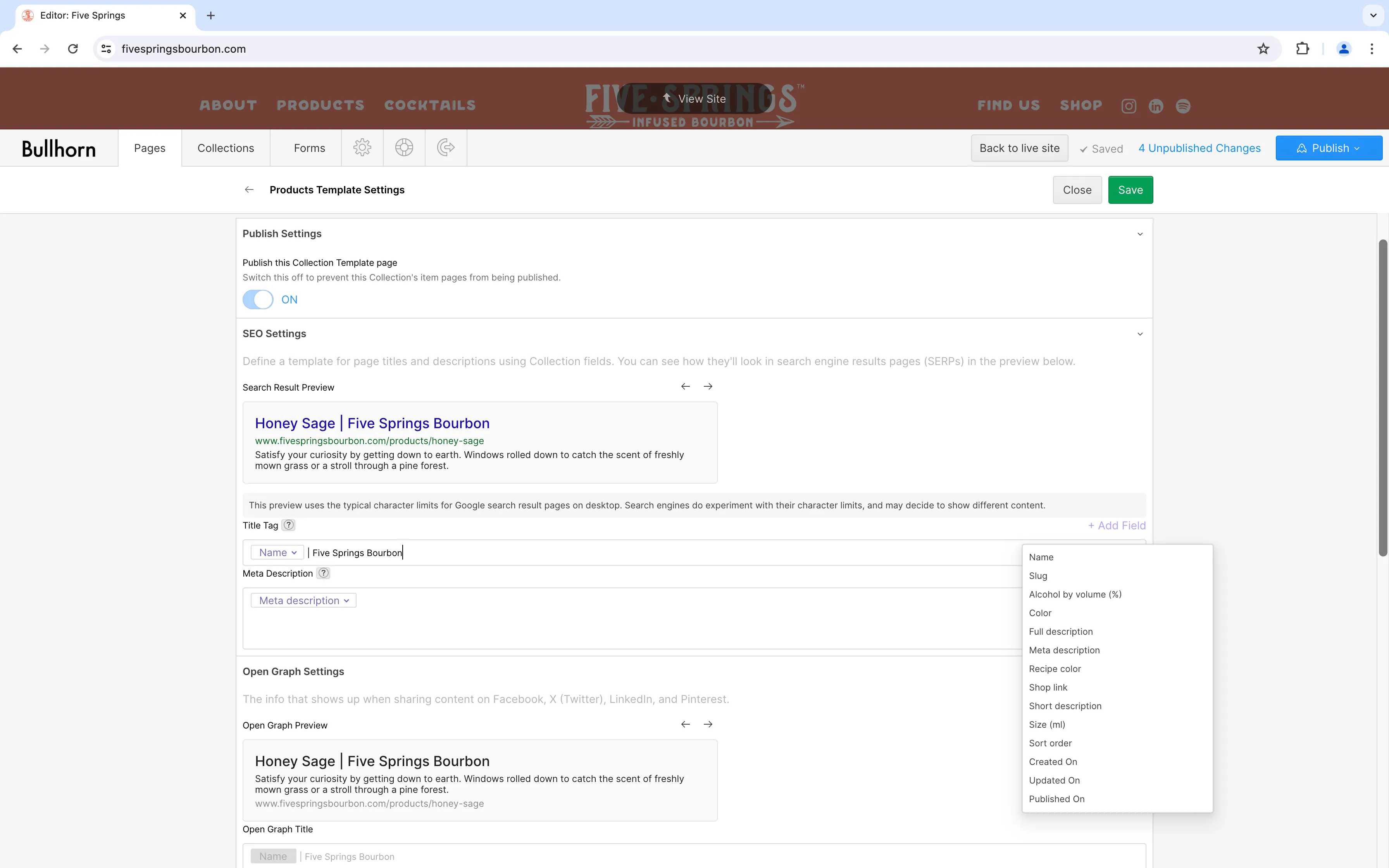
Note
Only matching content types can be added to settings fields. For example, title fields can only be populated with strings, or plain text. If a collection field is not available for use, it’s likely that the data type for that field does not match the data type required by the page settings.